
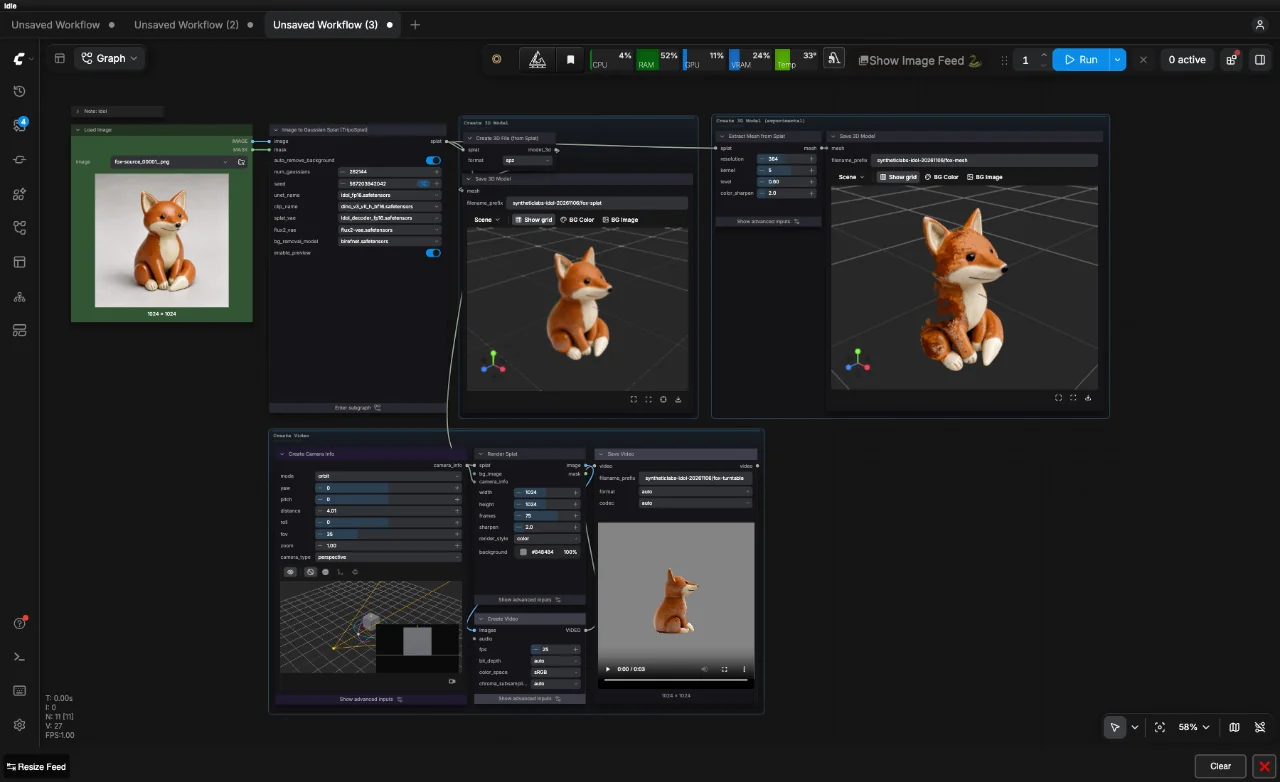
This Idol ComfyUI workflow takes a single image and creates three outputs: a 3D Gaussian splat in SPZ format, a GLB mesh and a turntable video. The supplied graph uses Idol model files through ComfyUI’s TripoSplat nodes, with optional BiRefNet background removal before reconstruction.
Output example: ceramic fox
We ran this workflow on a PC with an RTX 3090 using a ceramic fox image generated for Synthetic Labs with FLUX.3 Klein Distilled. All three branches completed. This is one input and seed, not a general quality benchmark.
Download example SPZ splat (3.4 MB) · Download example GLB mesh (58.9 MB) · Download turntable video
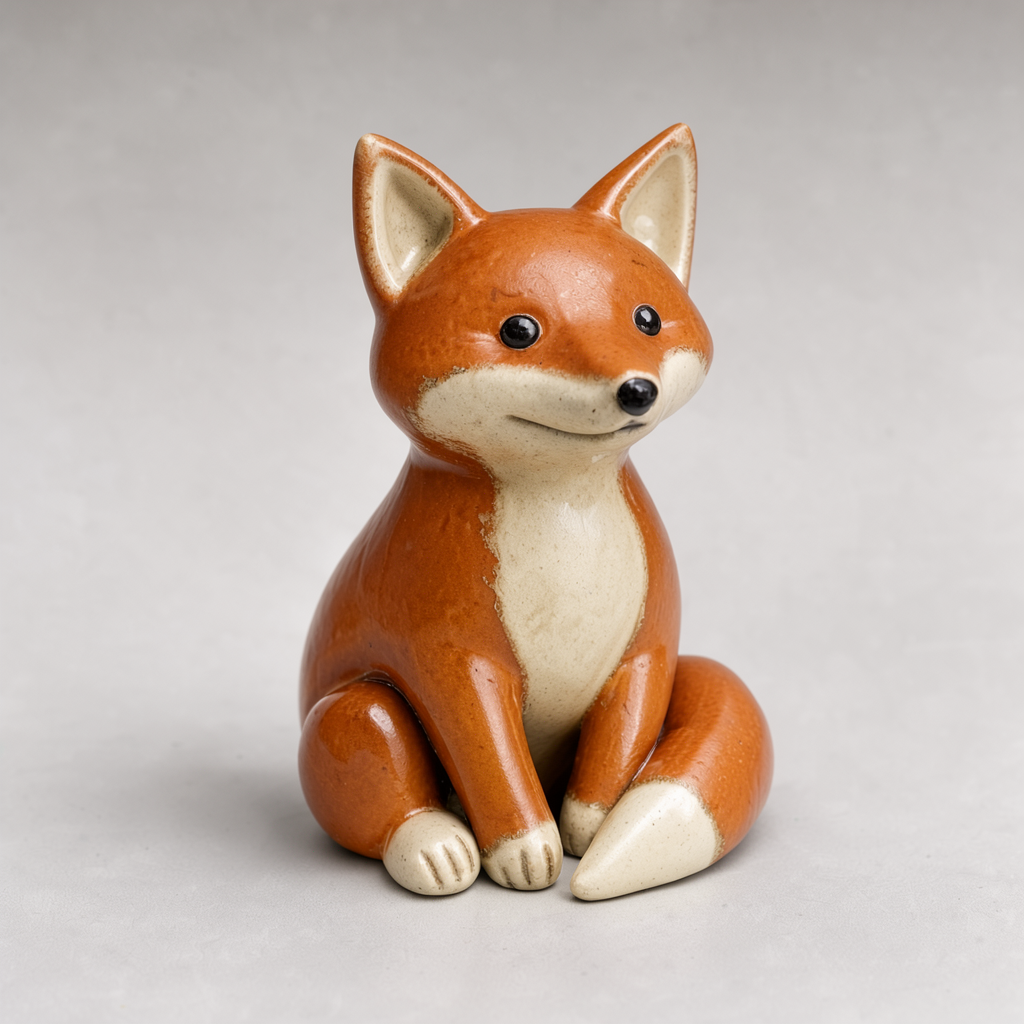
The splat contains 262144 points and preserves the fox’s ears, muzzle, paws and curled tail through the orbit. The back is inferred and glaze detail softens. The converted GLB has 2516792 triangles and visibly rough or fragmented surface areas; it needs further inspection and cleanup before production use.
The example uses reconstruction seed 567203942042; the original downloadable workflow retains its supplied settings.
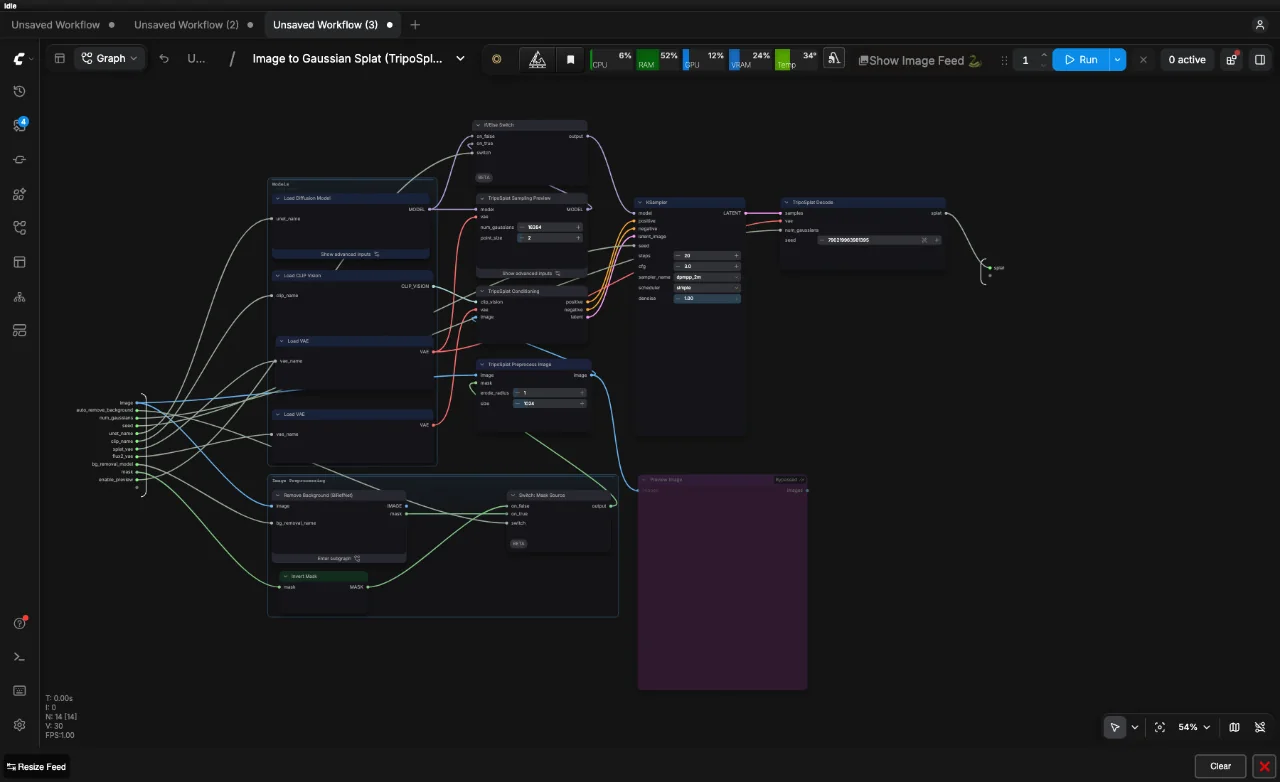
Download and load the workflow
Drag the downloaded JSON onto the ComfyUI canvas. Select your own image in Load Image: the filename saved in the workflow is a reference to a local input, and the image itself is not bundled in the JSON.
What the workflow creates
| Output | Branch | Use |
|---|---|---|
| Gaussian splat (.spz) | SplatToFile3D → SaveGLB | The reconstructed scene as Gaussian points. Open it in software that supports SPZ splats. |
| Mesh (.glb) | SplatToMesh → SaveGLB | A mesh derived from the splat for inspection or further editing in compatible 3D tools. |
| Turntable video | RenderSplat → CreateVideo → SaveVideo | An orbit around the splat, rendered at 1024 × 1024 with 75 frames at 25 fps: three seconds. |
The splat and mesh are different representations. A Gaussian splat is not a conventional polygon mesh; the GLB branch explicitly converts the splat to a mesh. Although the SPZ branch ends in a node called SaveGLB, its upstream format selector is set to spz.
Model files and setup
The graph records the following model downloads. Put each file in the corresponding folder under your ComfyUI installation, then refresh the model lists or restart ComfyUI.
| File | Folder |
|---|---|
birefnet.safetensors | models/background_removal |
dino_v3_vit_h_bf16.safetensors | models/clip_vision |
idol_decoder_fp16.safetensors | models/vae |
flux2-vae.safetensors | models/vae |
idol_fp16.safetensors | models/diffusion_models |
Use a ComfyUI version that includes the TripoSplat, Gaussian splat rendering, mesh conversion and background removal nodes used by this graph. Its node metadata identifies these as comfy-core. If nodes appear missing, update ComfyUI and check its startup log before looking for similarly named third-party extensions.
How to use it
- Choose an image with one clearly visible subject and a clean background. An isolated character or prop makes the intended object easier to identify.
- Open Image to Gaussian Splat and check the five model selectors against the files above.
- Leave
auto_remove_backgroundenabled for an opaque background. Disable it when your input already has a suitable alpha channel. - Start with
num_gaussiansat 262144. Keep the supplied settings for the first run so you have a baseline. - Queue the workflow. All three output branches are active in the supplied JSON.
- Inspect the full turntable, then open the SPZ and GLB in compatible viewers. Check the sides, back and thin parts before using the result in another project.
Settings in the supplied graph
| Setting | Saved value |
|---|---|
| Background removal | Enabled, BiRefNet |
| Gaussian count | 262144 |
| Exposed seed | 46 |
| Sampling | 20 steps, CFG 3, dpmpp_2m, simple scheduler, denoise 1 |
| Splat rendering | 1024 × 1024, 75 frames, colour mode |
| Video frame rate | 25 fps |
| Mesh conversion resolution | 384 |
| 3D filename prefix | 3d/3d_idol_image_to_gaussian_splat |
| Video filename prefix | video/3d_idol_image_to_gaussian_splat |
The subgraph exposes seed 46, while its internal KSampler also stores a randomize control. Check the seed behaviour in your ComfyUI version when comparing repeat runs. Record the effective seed and settings rather than assuming every queue submission is identical.
What to inspect in the result
A single image cannot show every surface. The sides and back are inferred, so a convincing front view does not establish accurate geometry. Look closely at thin objects, gaps, hair or fur, instrument strings and edges where background removal may have affected the subject.
The workflow note warns that increasing the Gaussian count above the supplied density can oversample existing points rather than add detail. Its mesh branch can also produce a heavy mesh at resolution 384. Check the resulting file size and geometry before importing it into a larger scene; lower the mesh resolution if you need a lighter first pass.
Troubleshooting
- Missing model: check the exact filename and folder, including both VAE files.
- Input image missing: select a local file in Load Image. The JSON does not include the original pixels.
- Subject edges disappear: inspect the background-removal preview and try an input with cleaner separation or an existing alpha channel.
- Memory error or slow mesh export: reduce mesh conversion resolution and test output branches separately to identify the expensive stage.
- SPZ will not open: use a viewer with Gaussian splat and SPZ support. A generic GLB mesh viewer may not support this representation.
Sources and related workflows
The supplied workflow links to Comfy-Org/Idol, speridlabs/idol and TripoSplat. Check the applicable model and dependency licences before distributing outputs or integrating them into a product.
To prepare an input, try FLUX 3 Klein image editing or Z-Image-Turbo image generation. Browse more guides in the ComfyUI archive.