
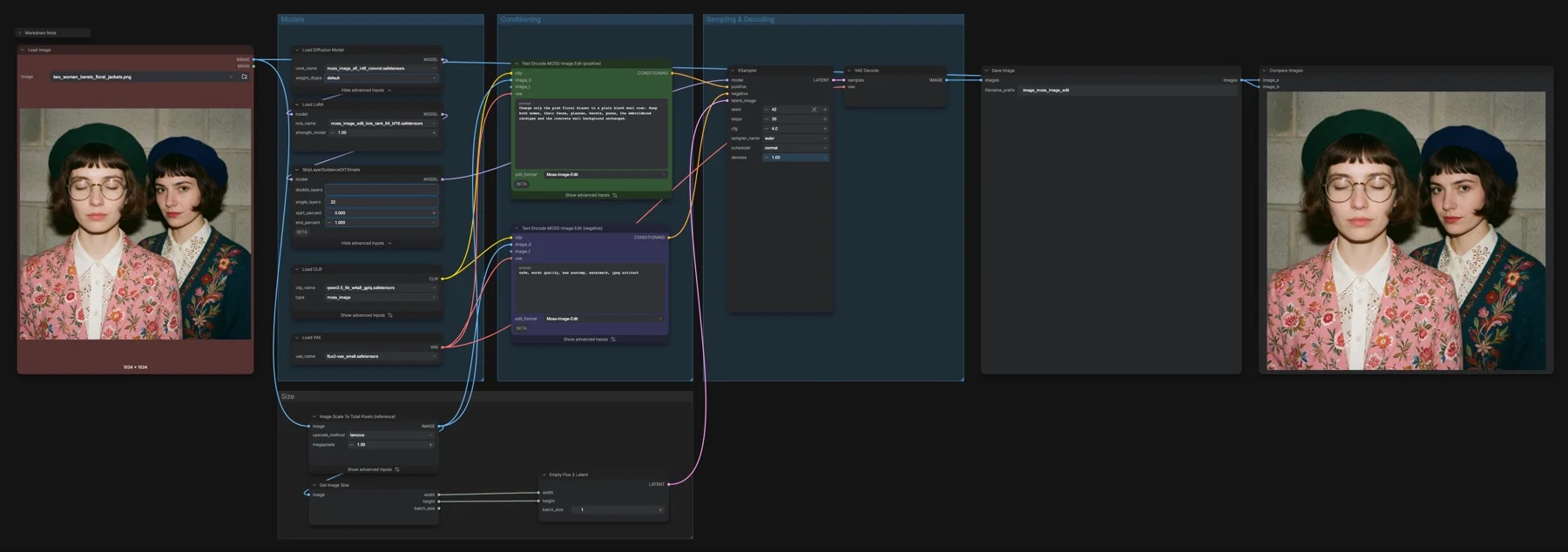
Short answer: this ComfyUI template edits one photo from a short instruction. An edit LoRA runs on top of the INT8 MOSS-Image SFT model, and the instruction is encoded together with the source image, so the sampler redraws the same frame with only your change. It runs 30 steps, CFG 4, euler and normal, which the notes call the values the LoRA author ships. The four files total about 13.3 GB, and the repository lists Apache-2.0, which allows commercial use.
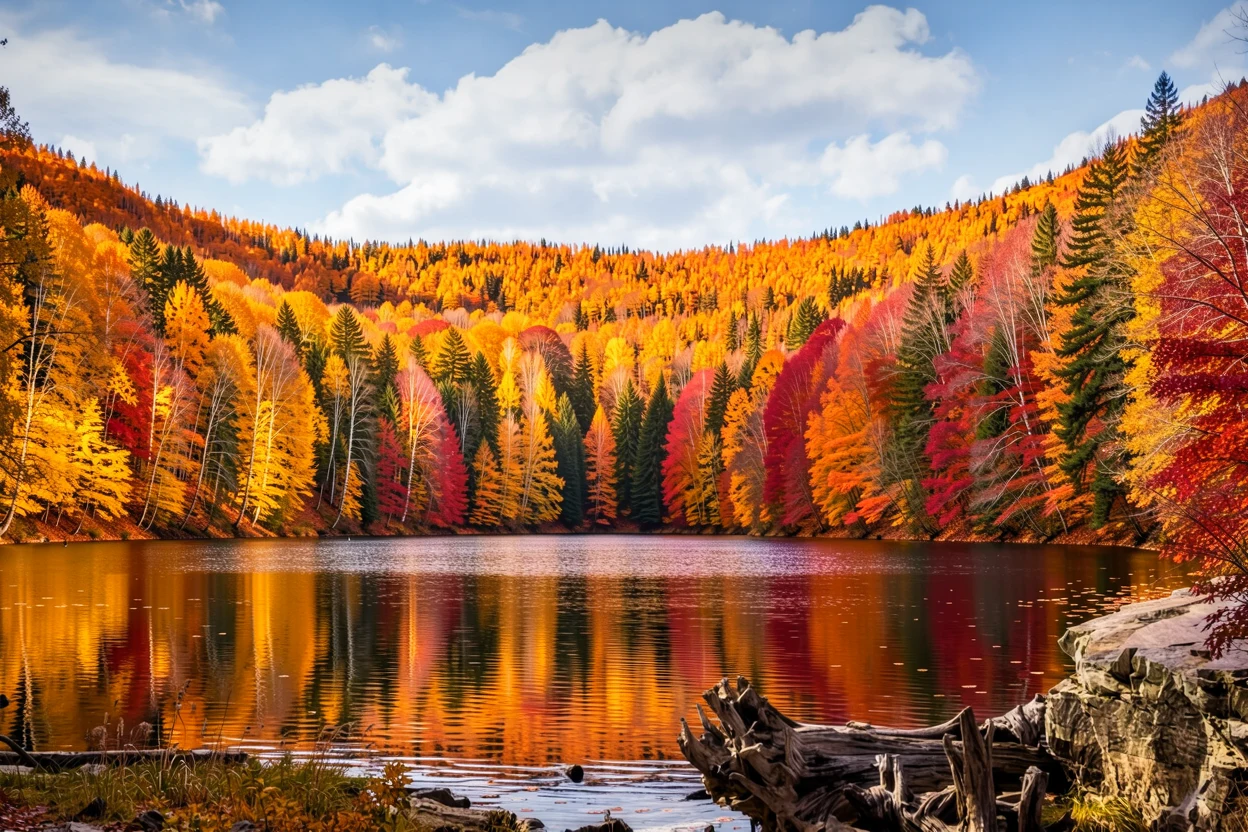
Output example
This workflow was run on a PC with an RTX 3090. We downloaded the saved output and inspected the image. It is one prompt and seed, not a general quality benchmark.
Input references
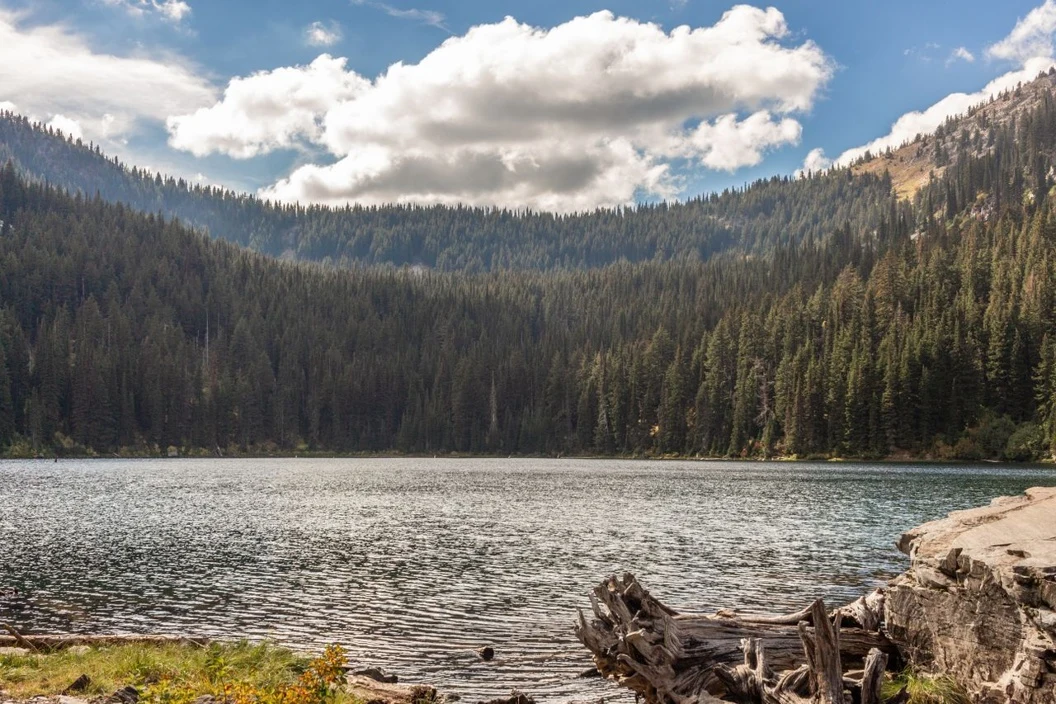
Clay Elliot · Source licence. Pillow proportional thumbnail to fit 1280x704, JPEG quality 95; upscale fixture fits 384x216, JPEG quality 80
Prompt used for this example
Change the evergreen forest into rich autumn foliage in gold, copper and crimson while preserving the mountains, lake, shoreline, sky and camera framing. Keep natural photographic lighting and reflected autumn colors in the water. No text or new objects.Observed limits: Foliage is substantially re-rendered and highly saturated; tree species and fine branches change.
Download and load the workflow
Drag the downloaded JSON file onto the ComfyUI canvas to load it.
Install the model files and any custom nodes listed below. If the workflow uses input images, video or audio, select your own files in the input nodes before running it.
Which files go where
| Part | File | Size | Folder |
|---|---|---|---|
| Diffusion model | moss_image_sft_int8_convrot.safetensors | 5.41 GB | models/diffusion_models |
| Edit LoRA | moss_image_edit_lora_rank_64_bf16.safetensors | 0.30 GB | models/loras |
| Text encoder | qwen3.5_9b_w4a8_gptq.safetensors | 7.34 GB | models/text_encoders |
| VAE | flux2-vae_small.safetensors | 0.25 GB | models/vae |
The total is about 13.3 GB. If you already have the text-to-image template set up, you only need the LoRA. A LoRA is a small add-on file that changes how the base model behaves. The repository is not gated, and no custom node packs are needed.
Settings in this workflow
| Setting | Value |
|---|---|
| Steps | 30 |
| CFG | 4 |
| Sampler and scheduler | euler, normal, denoise 1 |
| Seed | 42, fixed |
| Edit LoRA strength | 1 |
| Skip layer guidance | On, layer 22, from 0 to 1.0 of the run |
| edit_format (both encode nodes) | Moss-Image-Edit |
| Reference size | Image Scale To Total Pixels: 1.0 megapixel, lanczos, 16 px steps |
| Output size | From Get Image Size, so it matches the scaled source |
| Negative prompt | nsfw, worst quality, bad anatomy, watermark, jpeg artifact |
These differ from the text-to-image reference values in our layout post (50 steps, CFG 3), because the edit LoRA ships with its own. CFG (classifier-free guidance) weighs your prompt against the negative prompt. Skip layer guidance skips one model layer when it computes the negative branch.
How to use it
- Load the photo to edit in Load Image. It is scaled to 1.0 megapixel and the output takes the same size.
- In Text Encode MOSS-Image Edit (positive), describe only the change. The notes recommend the phrasing the LoRA was trained on: Change only the X to Y. Keep the character, face, hair, pose, background and composition unchanged.
- Leave the negative encode node on the recommended negative line. It sees the same source image, so it describes what to avoid, not what to remove.
- Keep edit_format the same on both encode nodes.
- Queue the run, then check Compare Images. Results save with the prefix
image_moss_image_edit.
If you edit photos of real people, you need consent from the person in the photo, and you must follow the licence's use rules.
Edit format, size and extra references
- edit_format must match the LoRA.
Moss-Image-Editis for the LoRA this workflow loads.ai-toolkitandai-toolkit (kv_cache off)are for LoRAs trained with ai-toolkit. The notes say the wrong value still returns an image, but identity, framing and detail drift from the source. - Keep CFG at 4. The notes say that if a necklace or earrings appear while you edit a top, CFG is too low for this LoRA.
- Size: the reference enters the model at exactly the size it arrives with. Dropping to about 0.26 megapixels (a 512 px long edge) is cheaper, but the notes say the model then starts re-framing the subject instead of editing it.
- More references: the encode nodes grow new image slots as you connect them. Connect up to four photos, such as a garment, a face or a prop, and say in the prompt what each one is for.
Licence
The Comfy-Org/MOSS-Image repository lists Apache-2.0 for the model and the edit LoRA, which allows commercial use. Our licence tracker compares the other open models.
Troubleshooting
| Problem | Likely cause | Fix |
|---|---|---|
| Text Encode MOSS-Image Edit is missing | ComfyUI is older than v0.43.0, which added edit LoRA support | Update ComfyUI and restart. |
| Face, framing or detail drifts from the source | edit_format does not match the LoRA, or the two encode nodes differ | Set both to Moss-Image-Edit. |
| Jewellery or other items appear from nowhere | CFG is too low for this LoRA | Set CFG back to 4. |
| The subject is re-framed instead of edited | The reference was scaled too small | Keep Image Scale To Total Pixels at 1.0 megapixel. |
| Things you did not ask for change | The prompt describes the whole scene | Use the "Change only ... Keep ... unchanged" phrasing. |
Where to go next
- Generate from text first: MOSS-Image text to image.
- Keep a pose and change everything else: MOSS-Image colour and depth control.
- Place text with boxes: MOSS-Image layout boxes.
- Restyle a photo from drawn boxes: Ming Image 0.1 Design image edit.
FAQ
Why 30 steps and CFG 4 here, but 50 and 3 elsewhere?
50 steps and CFG 3 are the official text-to-image values. The notes say 30 steps, CFG 4, euler and normal are what the edit LoRA author ships.
Can I use a LoRA I trained with ai-toolkit?
Yes. Load it in place of the edit LoRA and set edit_format to ai-toolkit (or the kv_cache off variant) on both encode nodes.
How many reference images can I add?
The notes say up to four. Empty slots cost nothing.
Sources
- Comfy-Org/MOSS-Image on Hugging Face: model, edit LoRA, text encoder and VAE files, Apache-2.0 licence
- OpenMOSS-Team/MOSS-Image-SFT model card: base model, licence and reference settings
- ComfyUI changelog: v0.43.0 edit LoRA support