
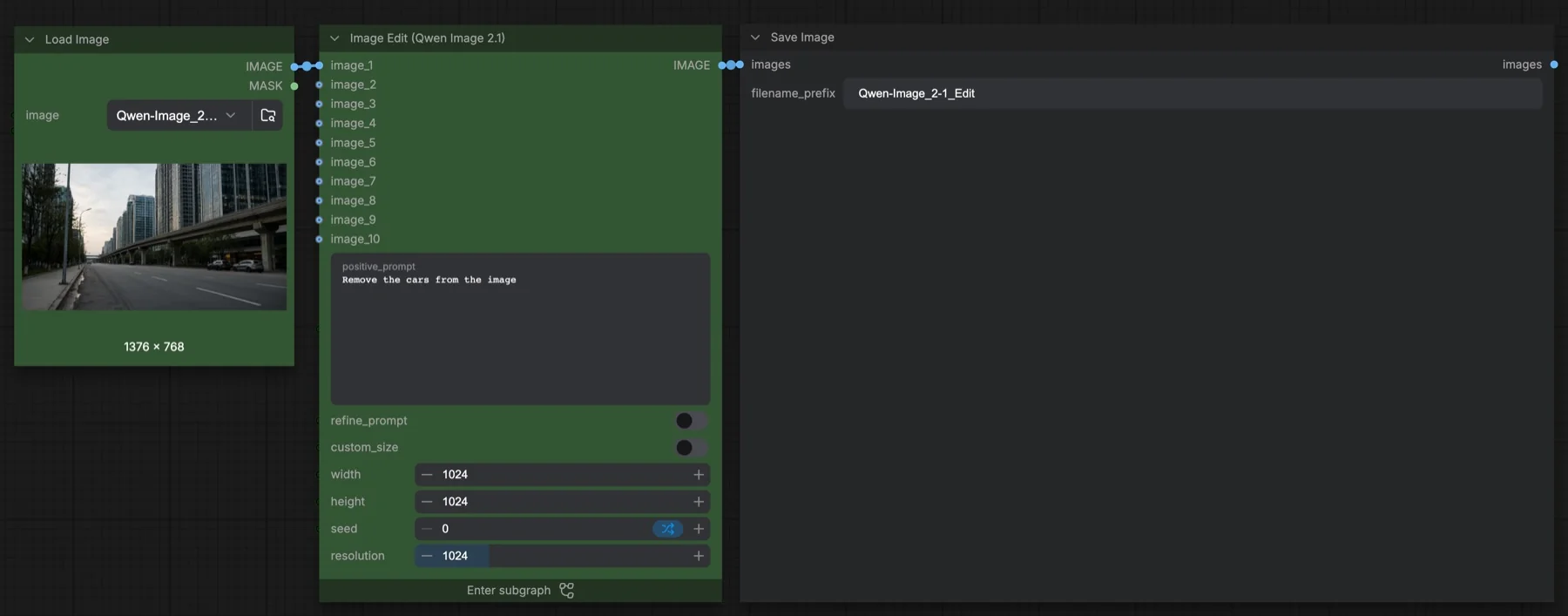
Short answer: The built-in Qwen Image 2.1: Image Edit template changes an image from a written instruction, such as "Remove the cars from the image". It uses Qwen-Image 2.1 at 25 steps, CFG 1, euler and simple, accepts up to 10 input images, and has an optional Prompt Enhancer that rewrites your instruction. It loads four files, about 26.8 GB in total. The licence is the Qwen Research License, which does not allow commercial use by default.
Output example
This workflow was run on a PC with an RTX 3090. We downloaded the saved output and inspected the image. It is one prompt and seed, not a general quality benchmark.
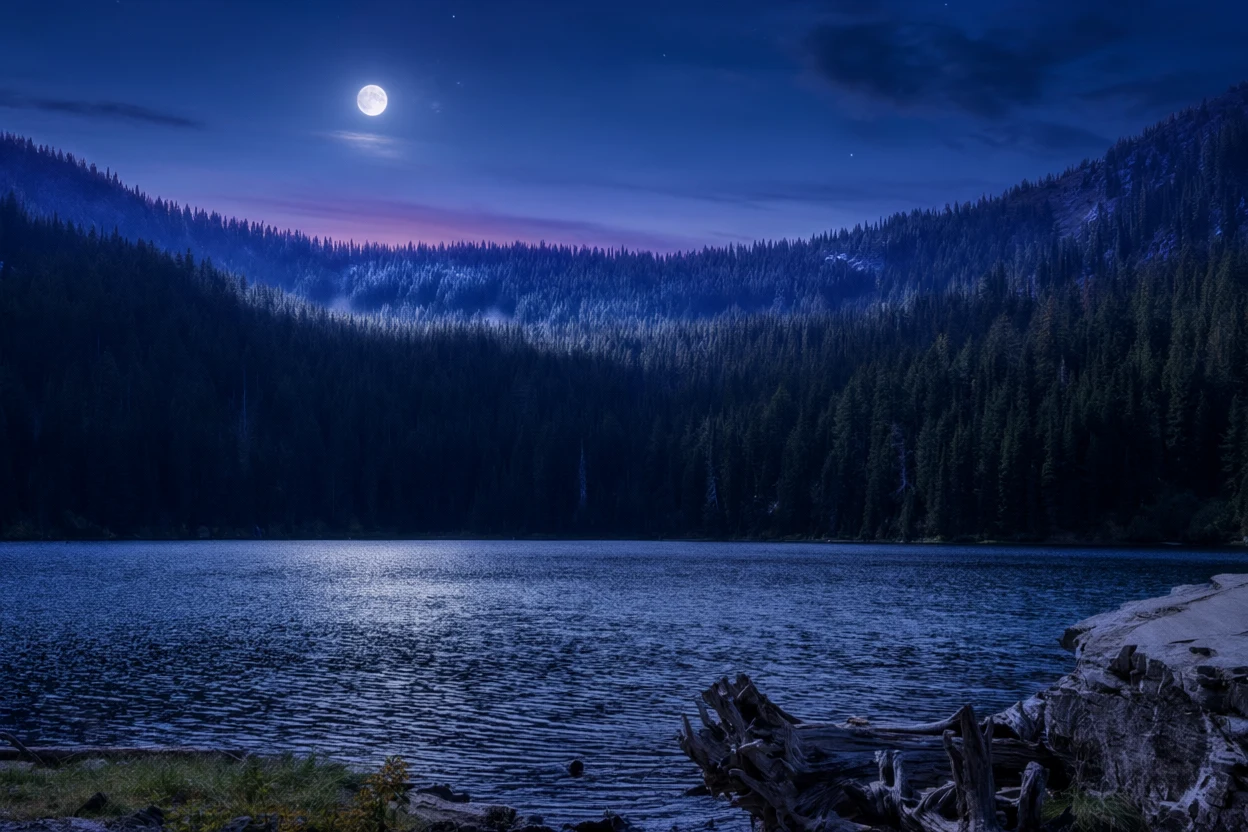
Input references
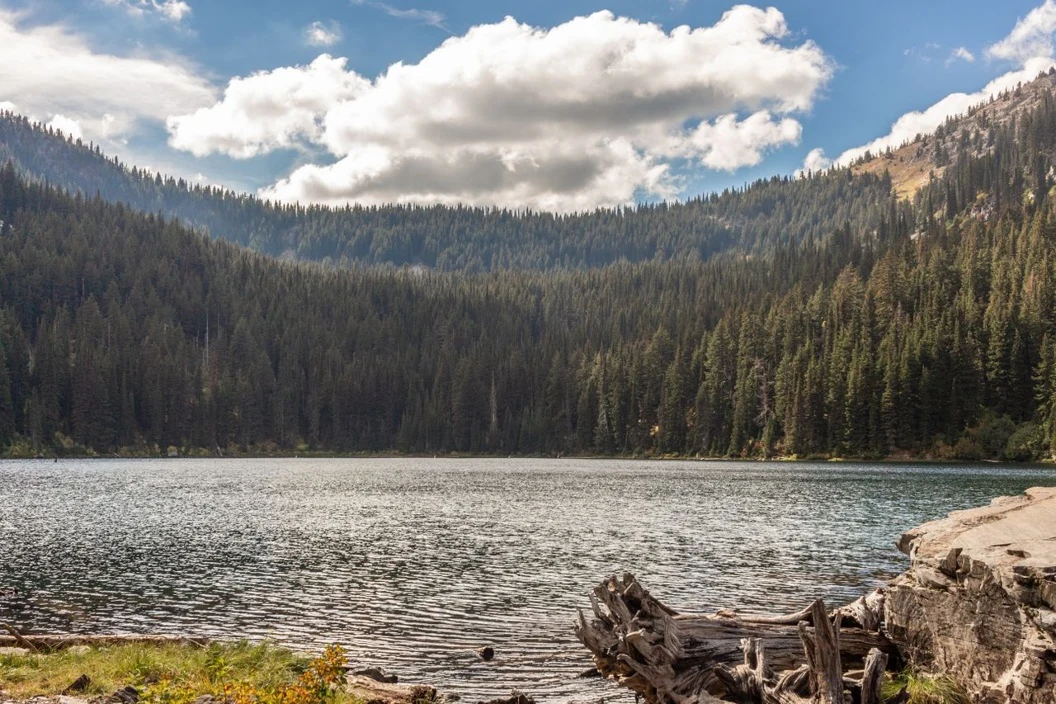
Clay Elliot · Source licence. Pillow proportional thumbnail to fit 1280x704, JPEG quality 95; upscale fixture fits 384x216, JPEG quality 80
Prompt used for this example
Change the time of day to moonlit blue hour, with cool deep-blue sky, silver moonlight on the mountain ridges and a gentle violet glow at the horizon. Preserve the lake shoreline, tree positions, mountain silhouettes, framing and photographic detail. Do not add objects, people or text.Observed limits: Adds a visible moon despite the no-added-objects clause; sky and fine vegetation are re-rendered.
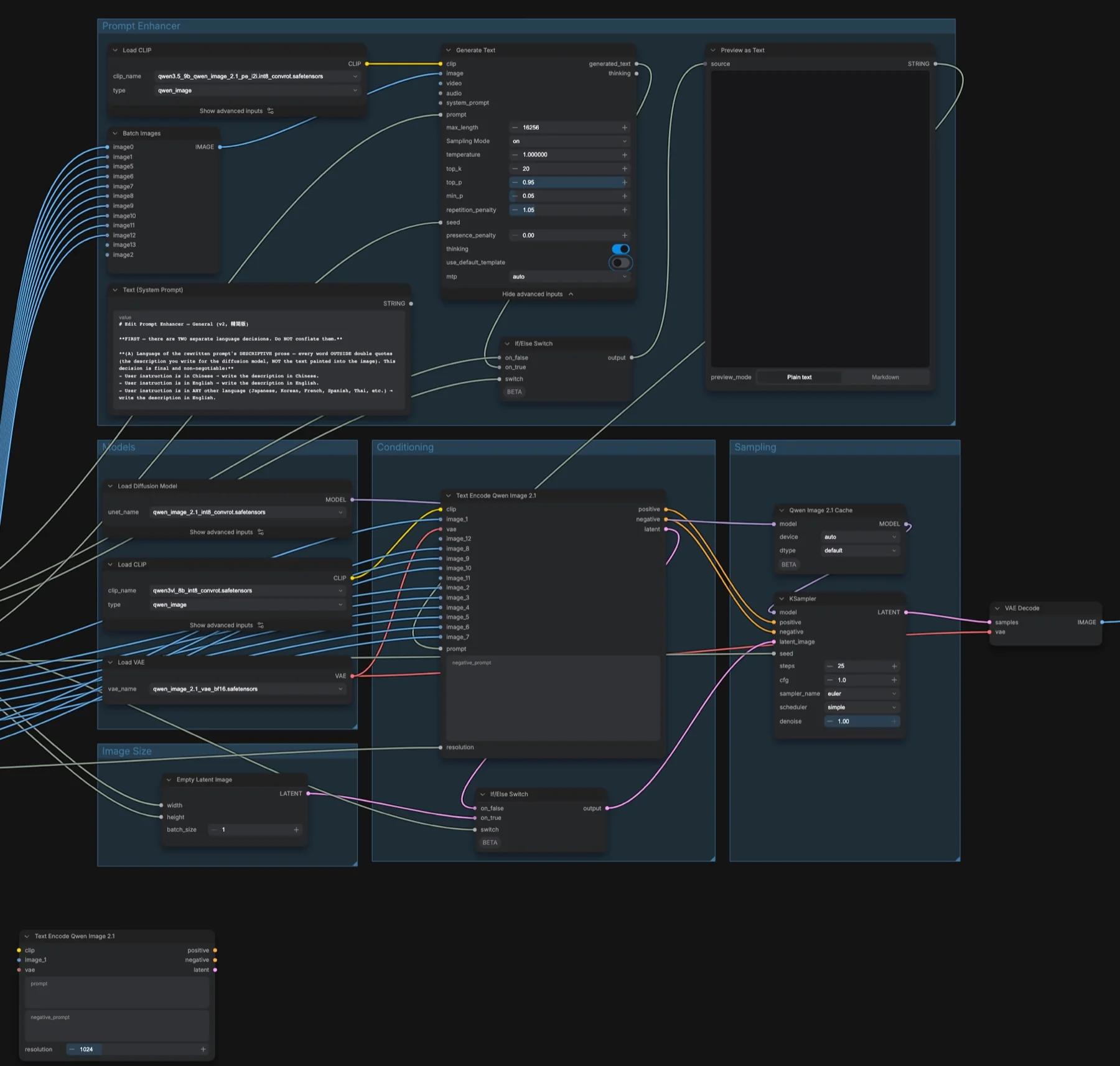
Download and load the workflow
Drag the downloaded JSON file onto the ComfyUI canvas to load it.
Install the model files and any custom nodes listed below. If the workflow uses input images, video or audio, select your own files in the input nodes before running it.
Which files go where
All four files come from Comfy-Org/Qwen-Image-2.1. The repository is not gated, and no custom node packs are needed.
| Part | File | Size | Folder |
|---|---|---|---|
| Diffusion model | qwen_image_2.1_int8_convrot.safetensors | 7.26 GB | models/diffusion_models |
| Text encoder | qwen3vl_8b_int8_convrot.safetensors | 9.35 GB | models/text_encoders |
| Prompt Enhancer model | qwen3.5_9b_qwen_image_2.1_pe_i2i.int8_convrot.safetensors | 9.47 GB | models/text_encoders |
| VAE | qwen_image_2.1_vae_bf16.safetensors | 0.68 GB | models/vae |
Total: 26.76 GB. The first three files are the same ones the text-to-image template uses, so you only need the Prompt Enhancer file on top.
Settings in this workflow
| Setting | Value |
|---|---|
| Steps | 25 |
| CFG | 1.0 |
| Sampler / scheduler | euler / simple |
| Denoise | 1.00 |
| Seed | 0, randomised after each run |
| refine_prompt (Prompt Enhancer) | Off |
| custom_size | Off (width and height 1024 are used only when on) |
| Text encoder resolution | 1024 |
| Qwen Image 2.1 Cache | device auto, dtype default |
| Generate Text (Prompt Enhancer) | temperature 1.0, top_k 20, top_p 0.95, min_p 0.05, repetition penalty 1.05, thinking on, max length 16256 |
CFG (classifier-free guidance) sets how strongly the negative prompt pushes against the positive one. At CFG 1 it has no effect.
How to use it
- Choose your source picture in Load Image. It feeds
image_1. - For multi-image edits, add more Load Image nodes and connect them to
image_2up toimage_10. - Write the instruction in
positive_prompt. Start with the action: "Remove", "Replace", "Add". - Turn on
refine_promptif your instruction is short or vague. Enter the subgraph and read Preview as Text to see the rewrite. - Turn on
custom_sizeonly if you want a fixed width and height. - Run the workflow. The result is saved with the prefix
Qwen-Image_2-1_Edit.
What the Prompt Enhancer does
This template has no notes, but its Text (System Prompt) node explains the rules the Prompt Enhancer follows. In short:
- It edits only what you named, and keeps everything else as it is in the input, including faces, product details and the image's style.
- It writes the description in your language if you write in Chinese or English, and in English for any other language.
- Text to be painted into the image goes in double quotes. If you do not give the exact words, it uses the main language already in the image.
- With two or more images, it refers to them as
<image1>,<image2>and so on, and says what each one supplies. - It never adds a resolution or aspect ratio. The graph sets the size.
You can follow the same rules when you write prompts by hand with the enhancer off.
Licence
The Comfy-Org/Qwen-Image-2.1 repository lists the Qwen Research License for all four files. It is a research licence, not for commercial use by default. Read it before client work, and see our licence tracker for alternatives such as MOSS-Image edit.
Troubleshooting
| Problem | Likely cause | Fix |
|---|---|---|
| Qwen Image 2.1 nodes show as missing | ComfyUI is too old | Update ComfyUI and restart. |
Error about the qwen3.5_9b file | The Prompt Enhancer model is missing | Download it to models/text_encoders. |
| Output size is not what you typed | custom_size is off | Turn custom_size on, then set width and height. |
| The edit is weak or touches the wrong area | The instruction is vague | Name the object and action, or turn on refine_prompt and check Preview as Text. |
| Out-of-memory error | The Prompt Enhancer and image model run in one job | Keep refine_prompt off, or use fewer input images. |
Where to go next
- Make images from scratch: Qwen-Image 2.1 text to image.
- Edit in 8 steps: Qwen-Image 2.1 Turbo, which uses the same editing pipeline.
- Swap a head between two photos: Qwen-Image 2.1 head swap.
- Another Qwen editing model: Qwen-Image-Edit 2511 in ComfyUI.
FAQ
How many images can I feed in?
The subgraph has ten image inputs, image_1 to image_10. The template connects one.
Do I need the Prompt Enhancer?
No. It is off by default. Turn it on when a short instruction gives weak or unclear edits.
Is Qwen-Image 2.1 edit free for commercial use?
Not by default. The repository lists the Qwen Research License.
Sources
- Comfy-Org/Qwen-Image-2.1 on Hugging Face: weight files, sizes and licence
- QwenLM/Qwen-Image-2.1 on GitHub: official project and licence text
- ComfyUI subgraph guide: how subgraph nodes work
- ComfyUI workflow templates issues: where to report template problems